Jobs
Track a piece of work from the first call to completion.
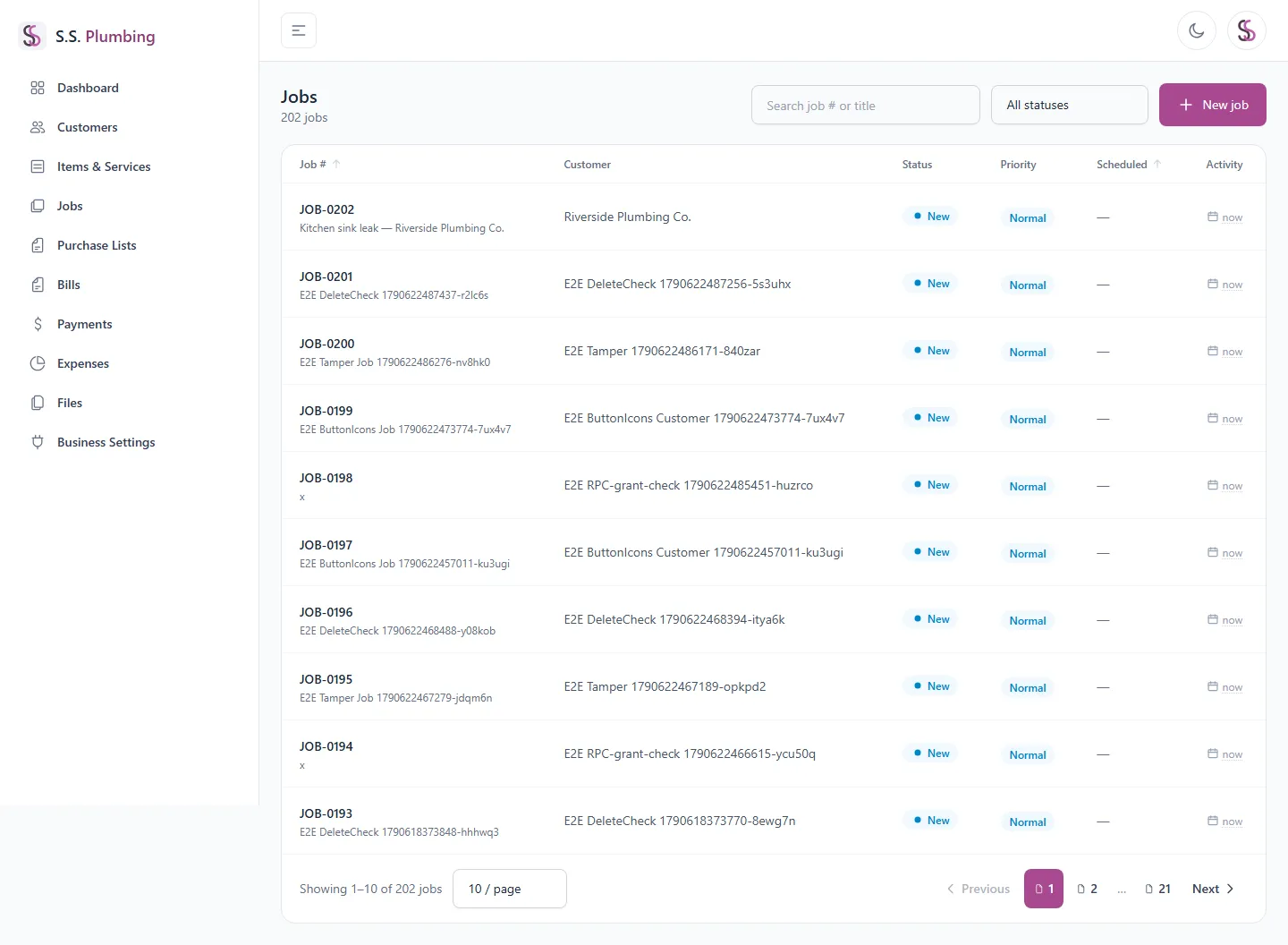
The job list
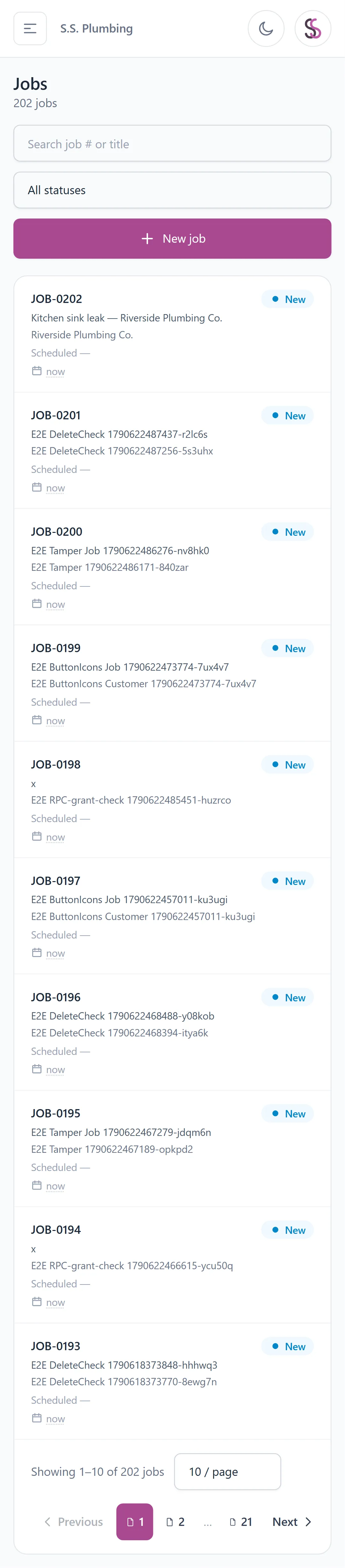
Search by job number or title, filter by status, sort, and page through results. If a search or filter comes up empty, "Clear filters" resets it.
Creating a job
"New job" opens a form: customer (required, pick from a search box), title (required), description, priority, scheduled date/time, address, and notes.
Good to know
Priority (Low / Normal / High / Urgent) is just a label you set to help you triage your own work list — it doesn't change anything else in the app automatically.
Starting a job from a customer's page pre-fills that customer for you.
Managing a job
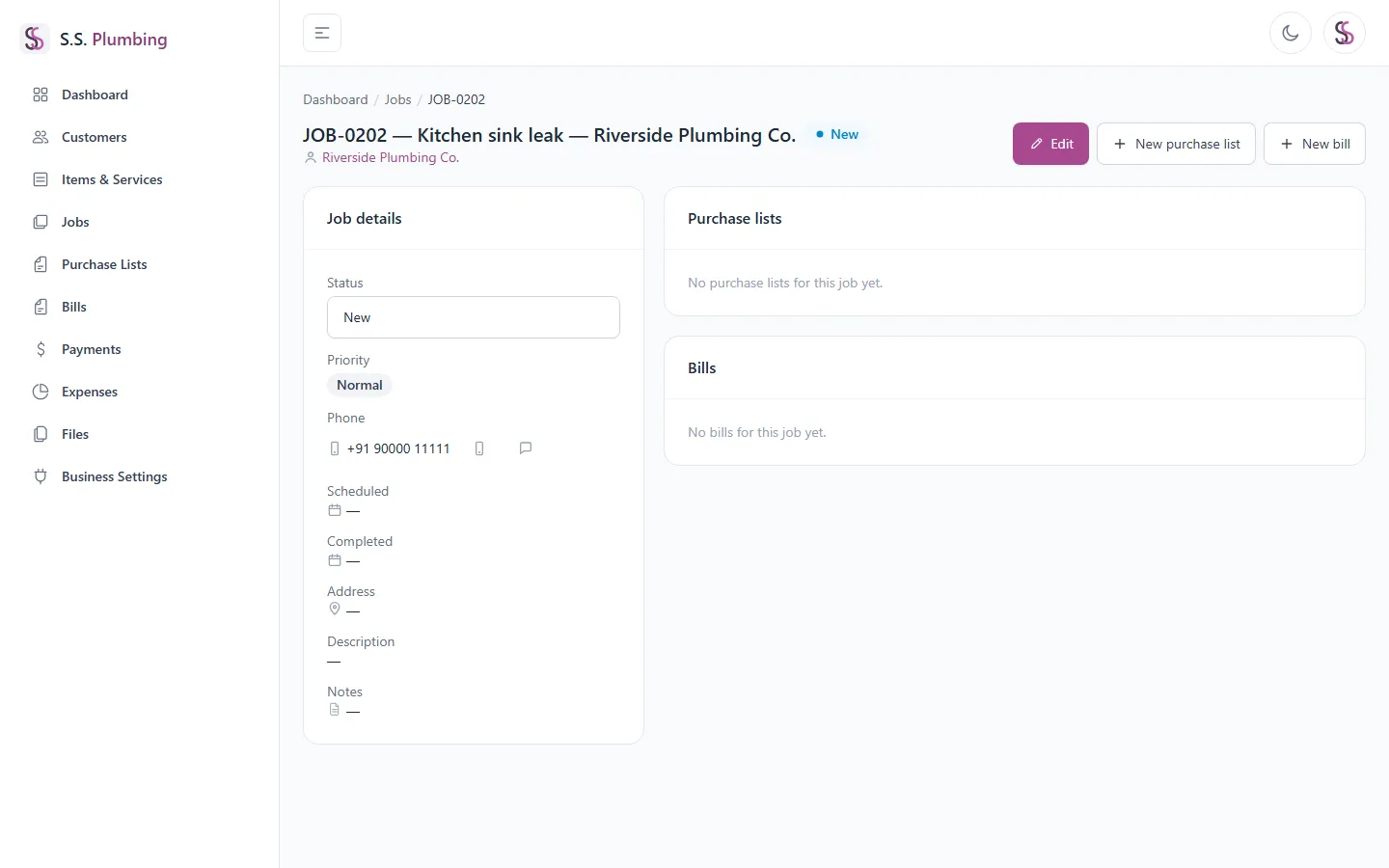
Editing a job uses the same form as creating one, plus a Status field.
- On the job detail page, the status dropdown updates immediately — there's no separate save step.
- Priority badge, scheduled/completed times, address, description, and notes are all shown for reference.
- Call/WhatsApp shortcuts contact the linked customer directly.
- "New purchase list" and "New bill" shortcuts start a new record pre-filled with this job and its customer.
- Related Purchase Lists and Bills for this job are listed below.
Good to know
Job statuses: New, Scheduled, In Progress, Completed, Cancelled.