Getting started
Signing in, setting up your business the first time, joining an existing business, and finding your way around the app.
Signing in
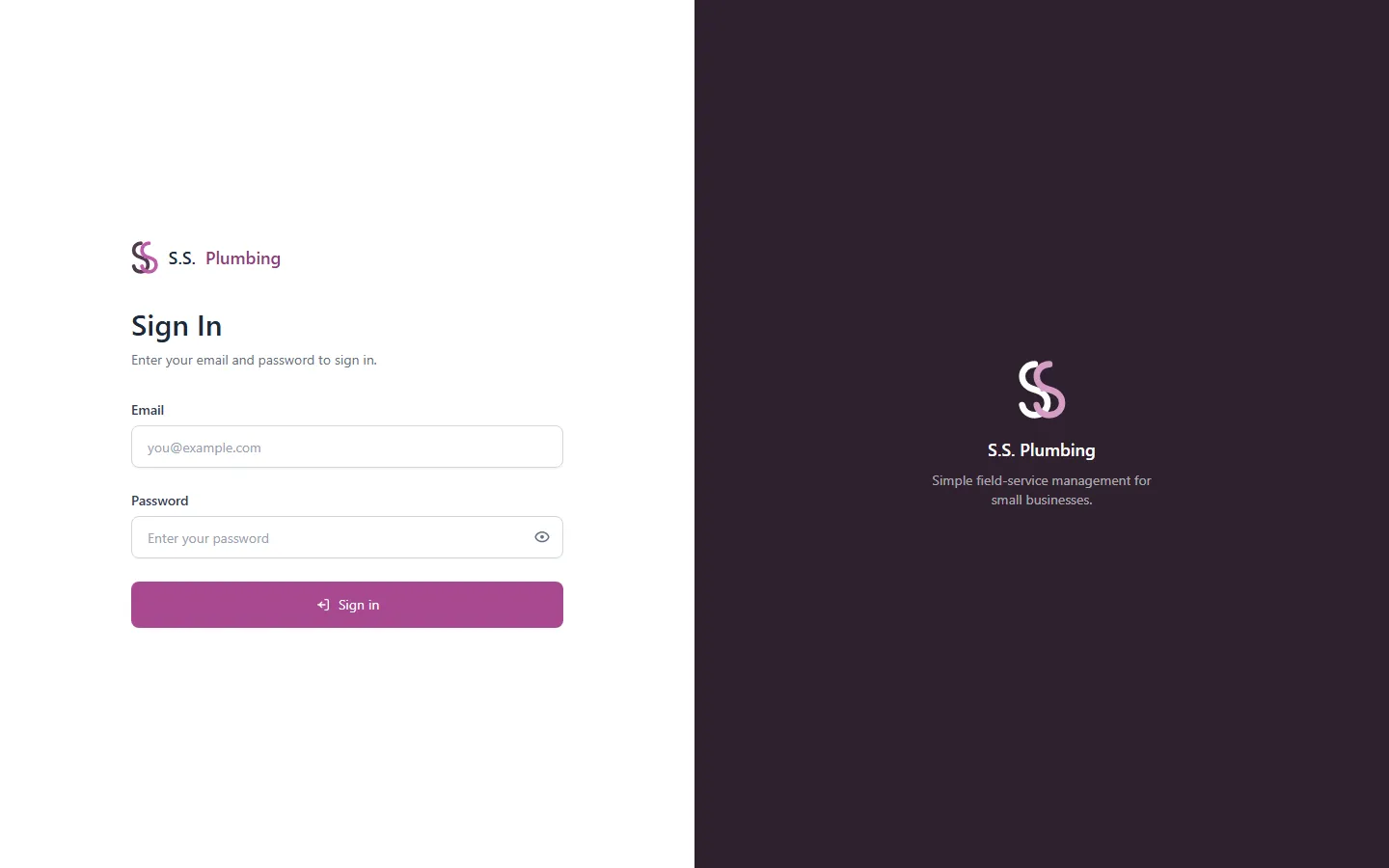
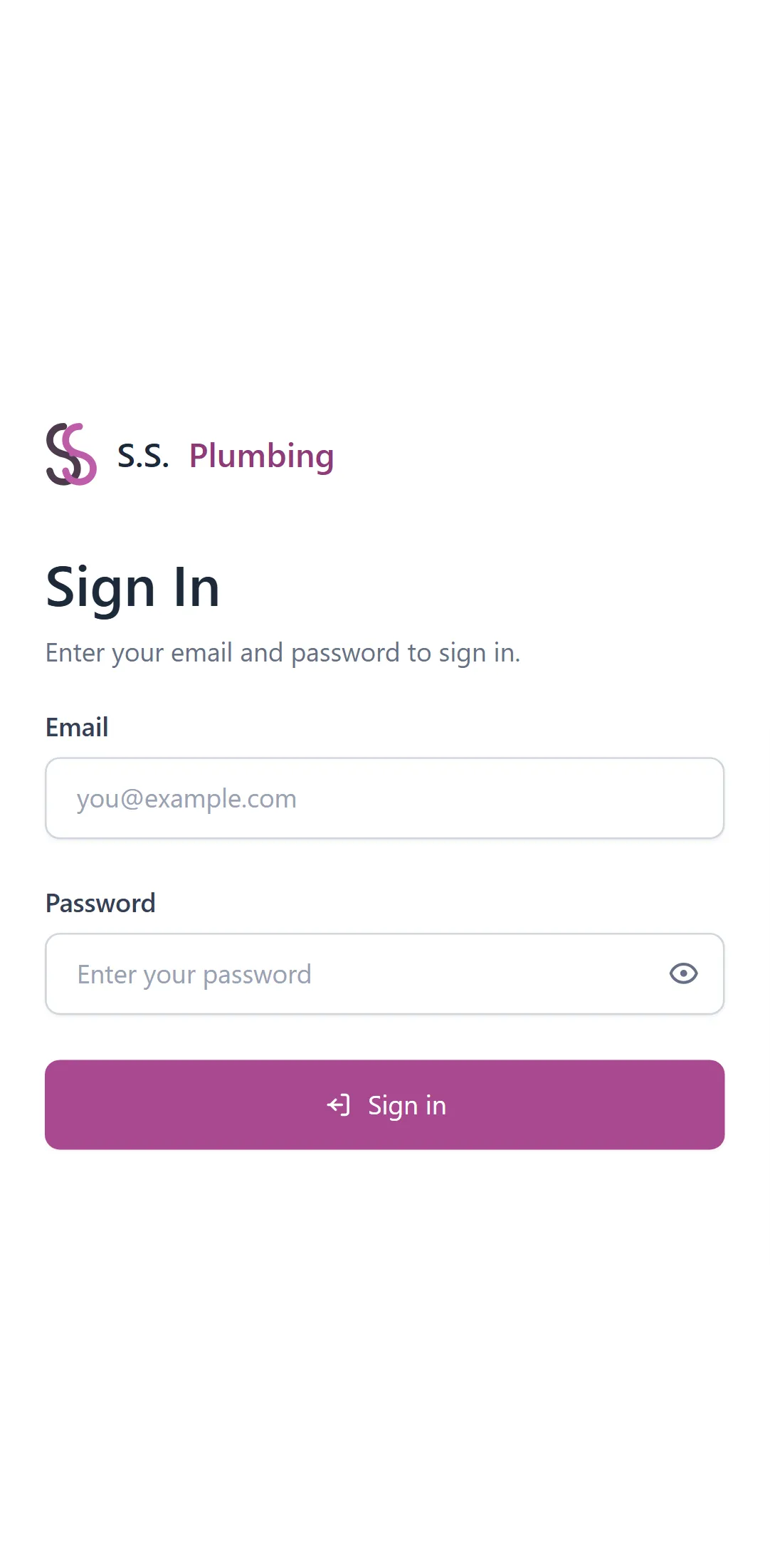
Open the app and sign in with the email and password your business owner set up for you. There is no separate "forgot password" flow in this guide — ask your business owner if you need your login reset.
- Tap the eye icon next to the password field to show or hide what you typed.
Setting up your business the first time
The very first person to sign in sees a "Set up your business" form instead of the dashboard. Fill it in once — everything here can be changed later from Business Settings.
- Business name and Business type (e.g. "Plumbing") — required.
- Owner name, Phone, WhatsApp, Email, Address — shown on your printed Bills and Purchase Lists.
- GSTIN — your GST registration number, printed on documents if you have one. Leave blank if you don't.
- Currency — a 3-letter code (e.g. INR) used wherever amounts are shown.
- Bill prefix and Purchase list prefix — short codes (e.g. "INV", "PL") stuck on the front of every Bill/Purchase List number you create.
Good to know
Everything on this form — name, logo, contact details, prefixes, tax settings — can be changed later from Business Settings, so there's no wrong answer here.
Joining an existing business
If your business is already set up and you're a new teammate, you'll see a "Join Business" screen instead of the setup form. You need an invite first — see <a href="/help/users-invites" class="underline">Users & invites</a> for how the owner sends one.
Note
If you see "No invite found for your email — ask the business owner to invite you first", the owner hasn't sent an invite to the exact email address you signed up with yet. Ask them to check the spelling and send one from Business Settings → Invites.
Finding your way around
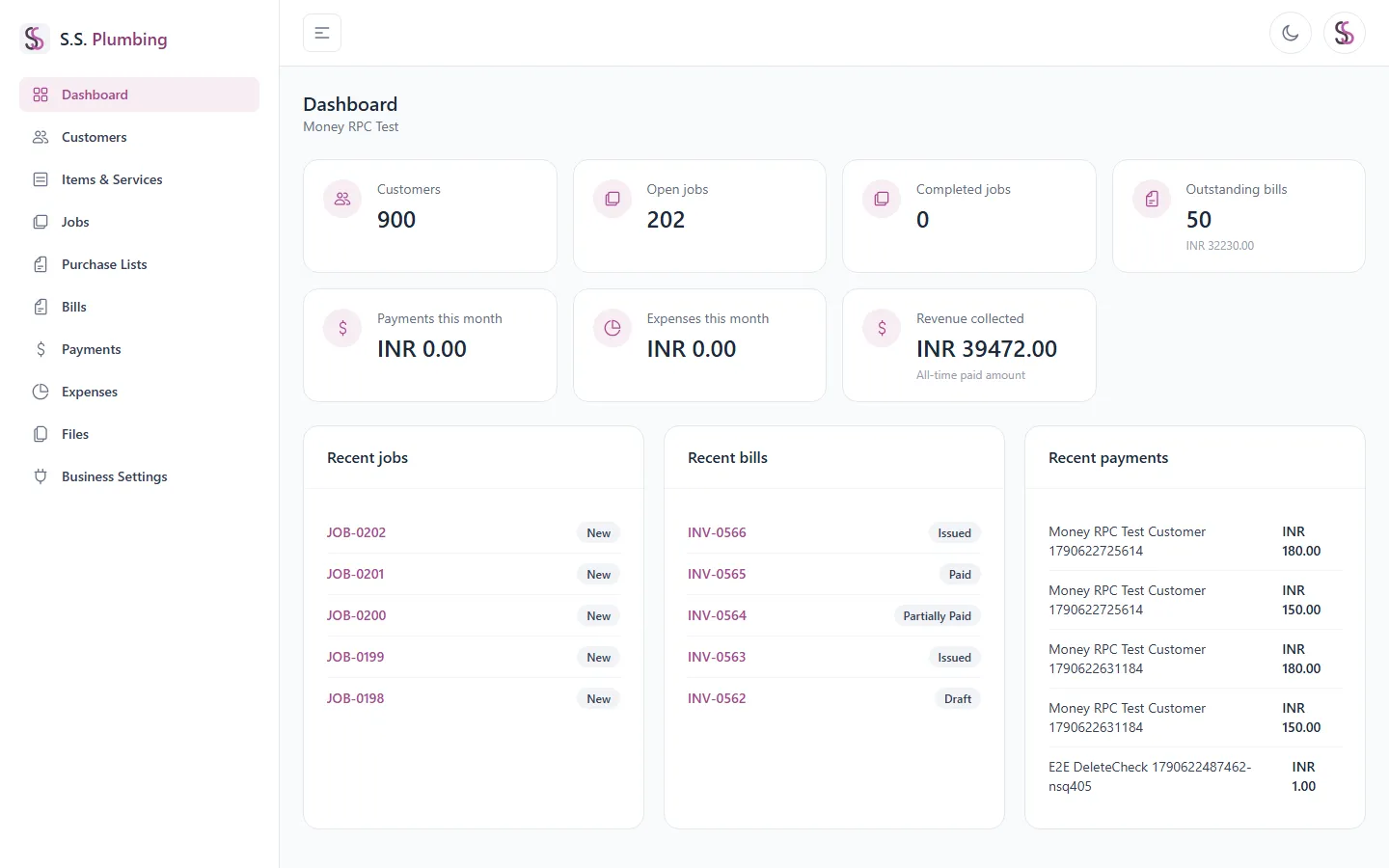
The sidebar on the left lists every section of the app: Dashboard, Customers, Items & Services, Jobs, Purchase Lists, Bills, Payments, Expenses, Files, and Business Settings.
- On a phone, tap the menu icon in the header to open the sidebar as a slide-over; tap outside it or press Escape to close it.
- On a desktop screen, use the collapse arrow to shrink the sidebar to icons only, giving more room to the page.
- The sun/moon icon in the header switches between light and dark mode.
- Tap your name/avatar in the header to reach your Profile, Business Settings, or to sign out.
The dashboard
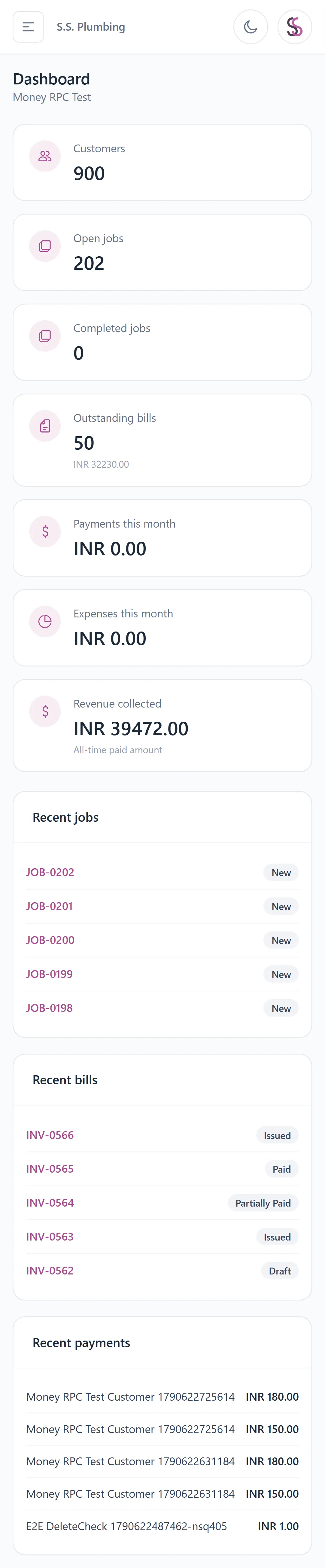
The dashboard (the page you land on after signing in) gives a quick snapshot of the business: customers, open and completed jobs, outstanding bills and their total value, payments received this month, expenses this month, and revenue collected.
Good to know
"Outstanding bills" counts every Bill that has been issued but isn't fully paid yet — Draft bills aren't counted since they haven't been sent to the customer.
- Below the metric cards, three lists show your most recent jobs, bills, and payments with their status badges, so you can jump straight to something recent.
- If you haven't created anything yet, each list shows a friendly empty state instead of a blank space.
Your profile and signing out
Your Profile page lets you change your display name. Your email is shown but can't be edited there — that's tied to your login.
- Sign out ends your session on this device only.
- Log out of all devices ends every session everywhere you're signed in — useful if you think someone else has access to your account. A confirmation dialog explains the difference before you confirm.