Customers
Add, find, and manage the people and businesses you work for.
The customer list
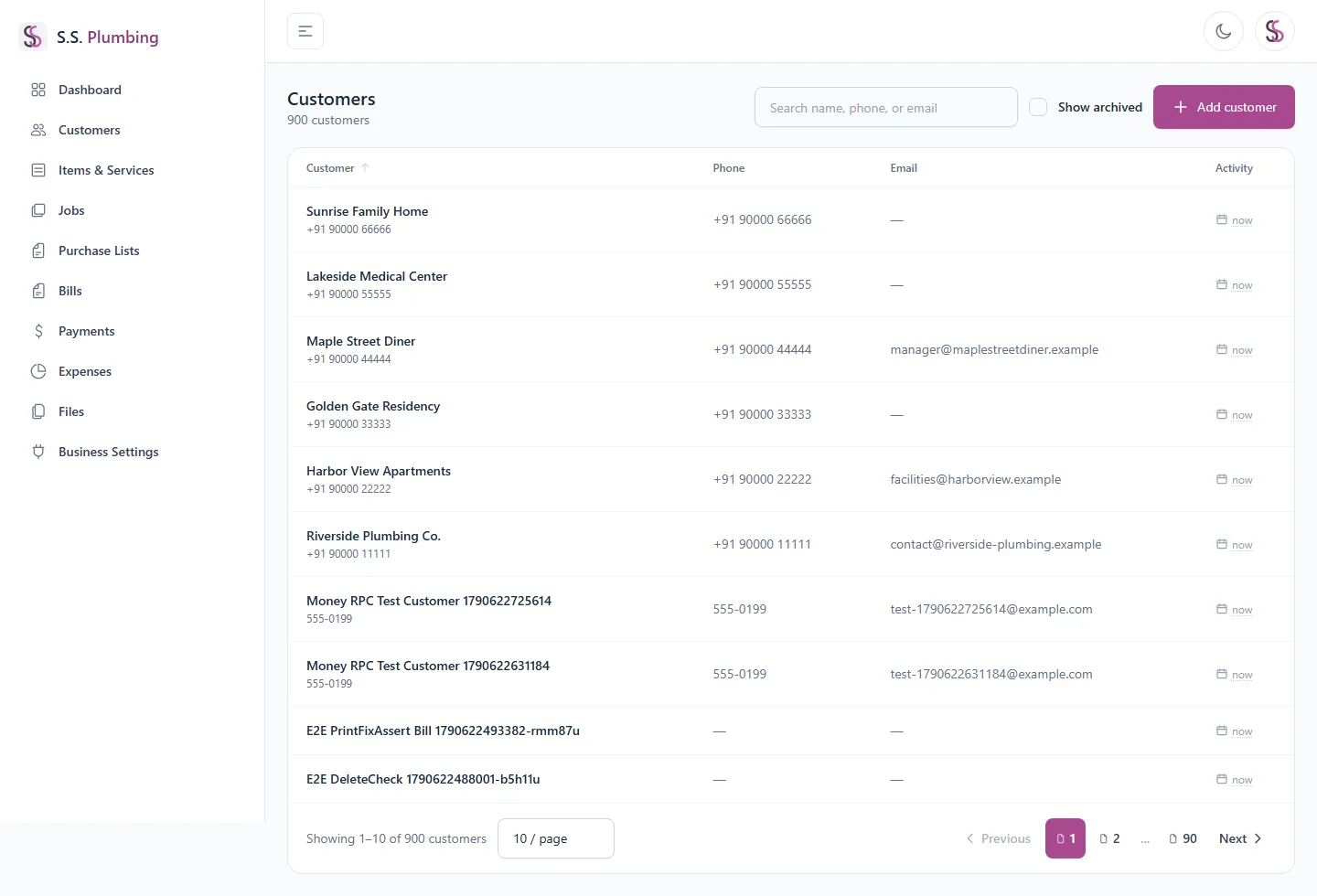
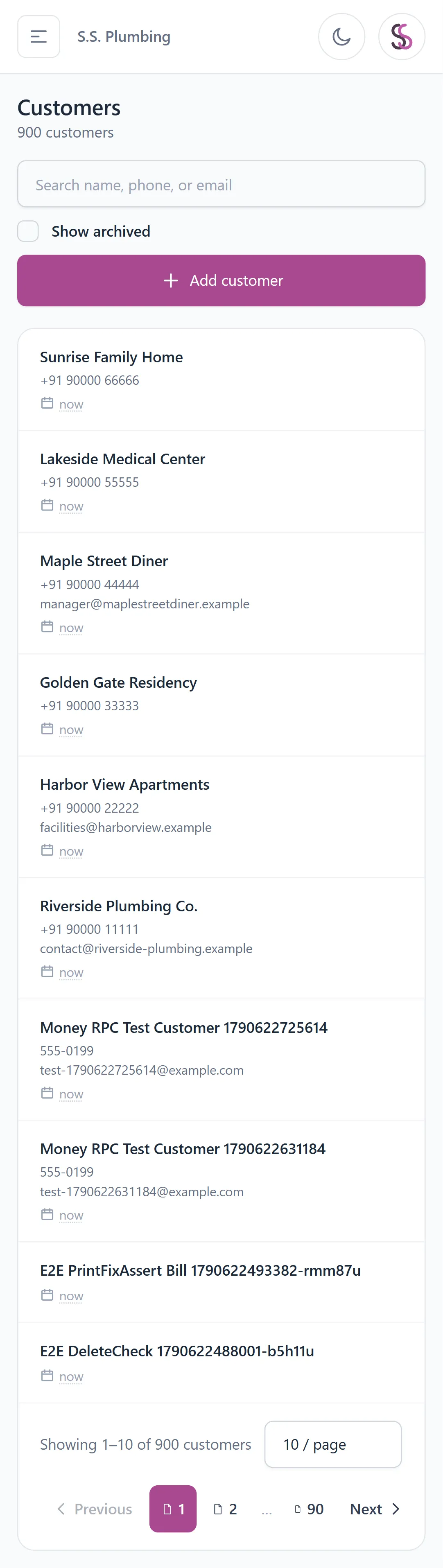
Search by name, phone, or email — results update as you type. Columns are sortable, and the list is paginated with a page-size selector.
- Tick "Show archived" to also see customers you've archived — they're hidden by default.
- "Add customer" opens the new-customer form.
- If a search doesn't match anything, a "Clear search" link resets the filter.
Adding and editing a customer
The form asks for name (required), phone, email, address, GSTIN, and free-text notes. Only the name is required — fill in whatever else you have.
Editing uses the same form, reached from the customer's detail page.
The customer detail page
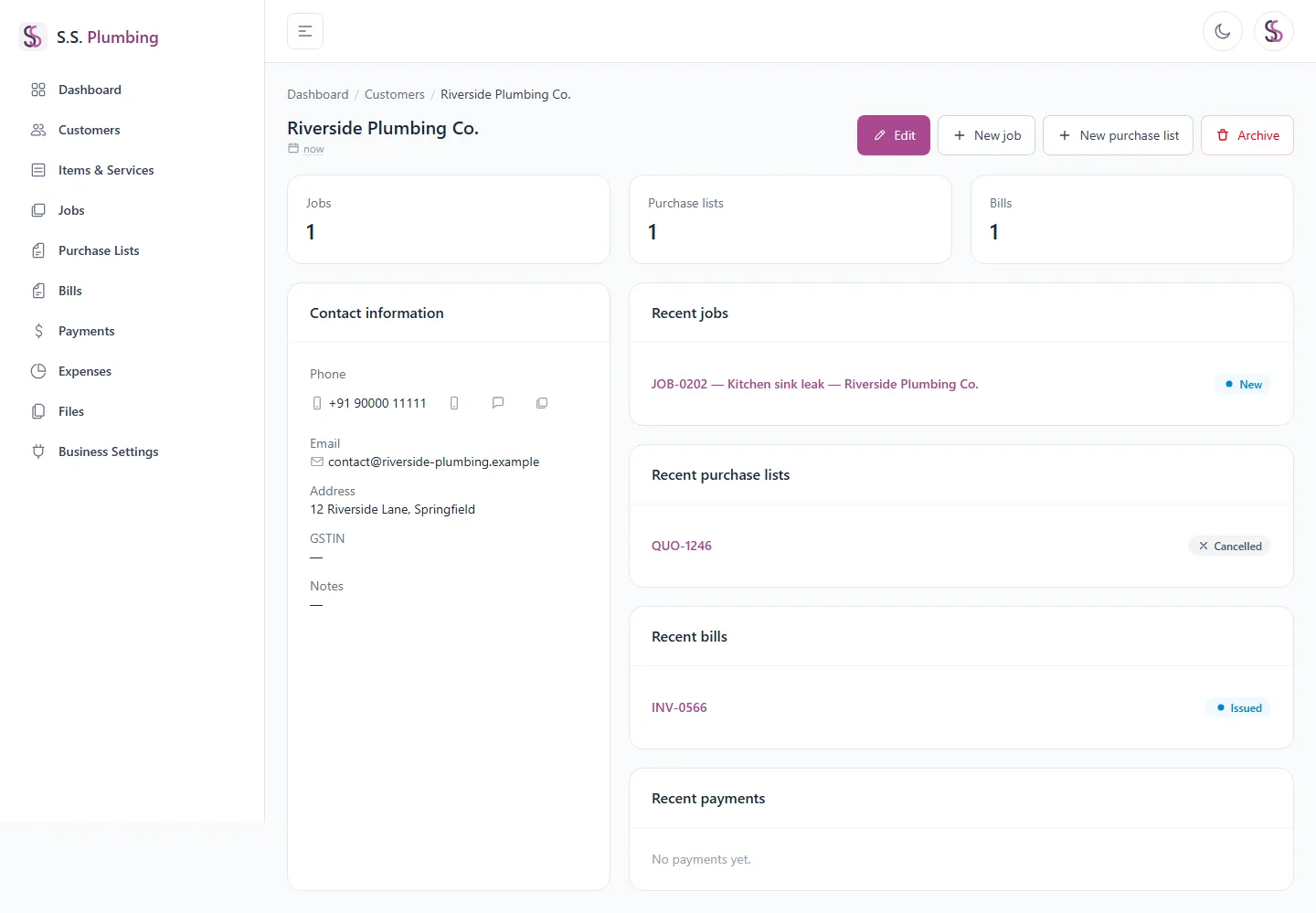
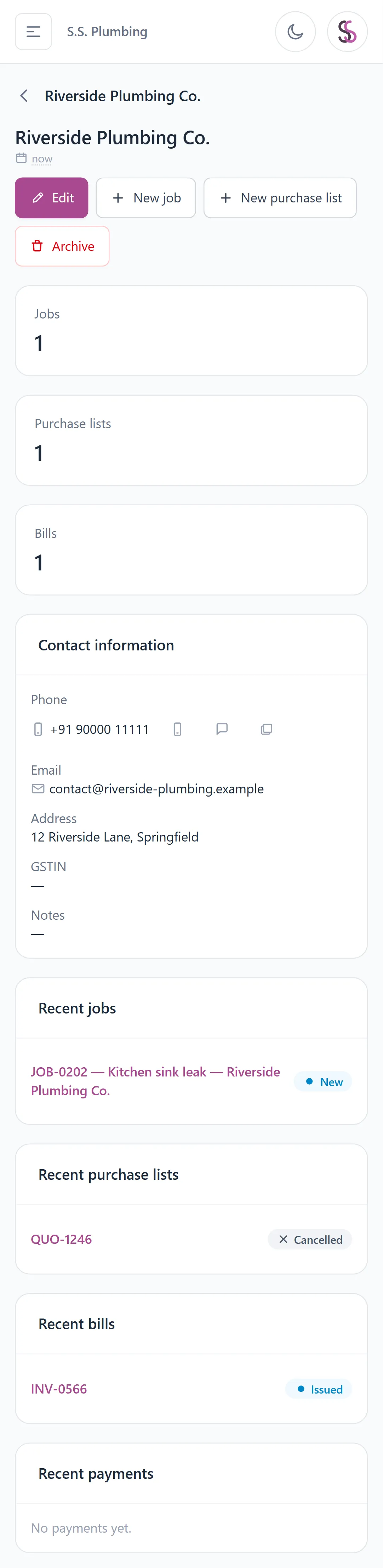
Opening a customer shows their contact details, quick actions, and everything linked to them.
- Tap-to-call and WhatsApp links next to their phone number open your phone's dialer or WhatsApp directly.
- A small copy icon next to the phone number and GSTIN copies the value to your clipboard.
- Counts show how many jobs, Purchase Lists, and Bills this customer has, with recent-activity lists below.
- "New job" and "New purchase list" shortcuts start a new record already linked to this customer.
Archiving a customer
Good to know
Archiving hides a customer from the default list and from pickers elsewhere in the app — it does not delete their records or history. Unarchive any time from the detail page (tick "Show archived" on the list to find them) to bring them back.